- Section
EH 15019 :: How to register product filters?
Use filters to make it easier for customers to browse the store products and find them faster.
This article shows how to create and use product filters.
Step 1
Go to STORE CONFIGURATION > Products path, check the Product attributes filters field in the Filters section and click Save at the bottom of the page.
Also in the Filters section, click the arrow to the right of the Product attributes filters field:

Step 2
In the Filters window, enter the following fields:
- Name: enter the name of the filter (eg: Brand).
- Description: enter the purpose of the filter (eg: Products brands of the store).
- Type: choose whether the filter applies to a category or to the entire store.
- Order: choose whether the filter will be displayed in the cart and in the order page on the control panel. Select the item only option so that the filter name is not displayed.
- Store: choose whether the filter will be shown on the store's product pages. Select the item only option so that the filter name is not displayed.
- Active: check to enable the filter.
- Sorting: enter the filter order in the product detail pages and in the shopping cart. Possible numbers are 0 to 255. Filters with higher numbers will be displayed first. If the number is the same in more than one filter, the sorting will be alphabetical for these filters.
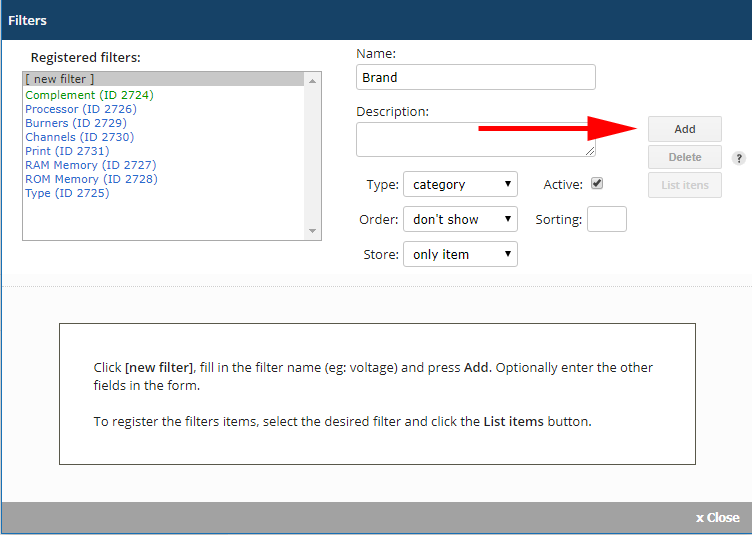
Click the Add button to save the new filter.
Step 3
Click the List items button to register the filter options.
- Item: enter the item name (e.g.: Calvin Klein).
- Color: enter the RGB code of the product's main color in hexadecimal format. For example, #FFFFFF is the RGB code of white color. To visually choose the color, click on the color box next to this field.
- Image: Use this field to show an image that represents this filter item. For example, if the product has two main colors (say red and gray), create an image that represents these colors. This also can be used to create filter items that display products textures rather than colors. Click the arrow to send the image to the PROD folder.
- Active: check this field so that the option can be used.
- Sorting: enter the display order of the item. Possible numbers are 0 to 255. Items with higher numbers will be displayed first. If the number is the same in more than one item, the sorting will be alphabetical for these items. Use this sort field to in size items (S, M, L, XL, XXL) to prevent them from being displayed in alphabetical order (L, M, S, XL, XXL).
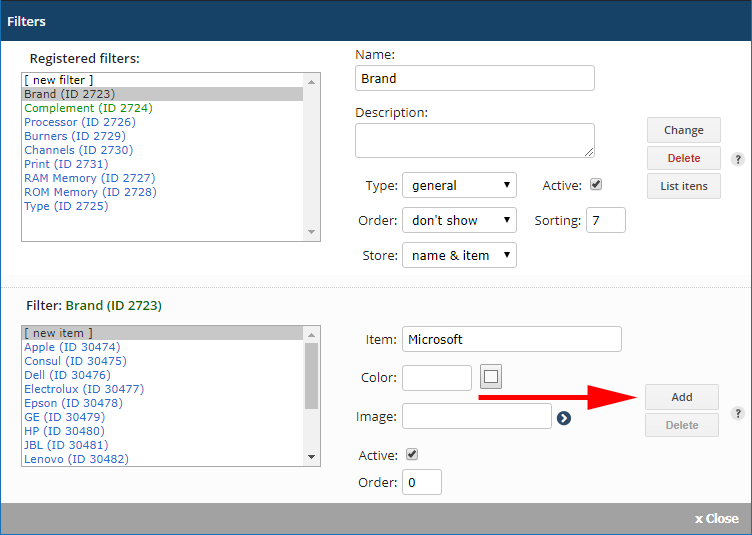
Press the Add button to save the new item.
Step 4
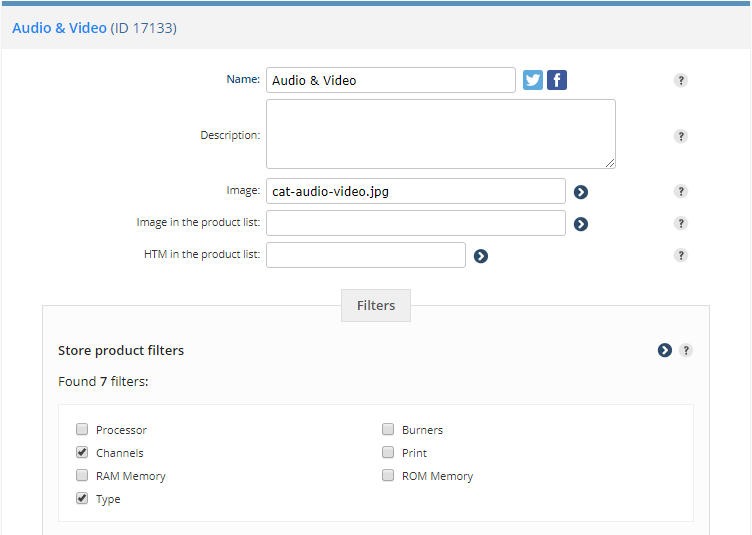
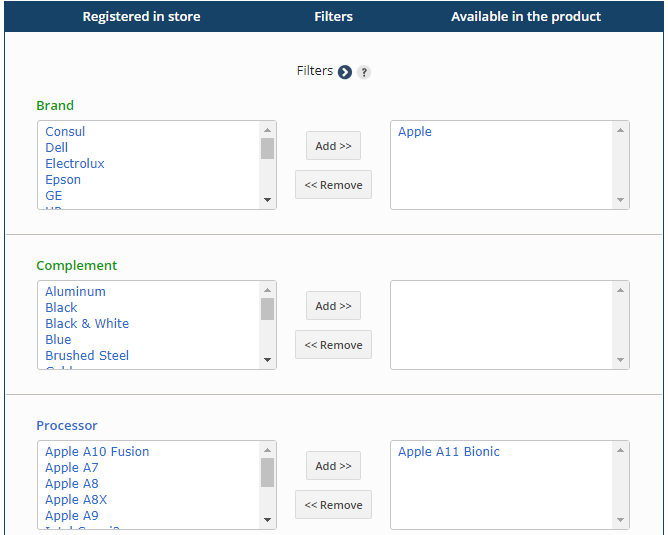
Once you've created your filters and their items, access the category and product details pages and choose which filter to use.
FILTERS EXAMPLE ON THE CATEGORY DETAILS PAGE:
FILTERS EXAMPLE ON THE PRODUCT DETAILS PAGE:
NOTE: You can register more than one filter with the same name. For example, if the store sells TVs and cell phones, register a screen size filter for each product category. This way, when accessing the category of TVs, will be presented the screen size options of TVs and not of cell phones.
 US$ 4.06Your new store comes with pre-registered products, to better try the shop resources. It is easy to remove these products.
- US$ 0.95You can use subproducts to register color variations and product sizes.
|